- Code samples
- VB6 / VBScript (COM), C#
- Published
In short: A ZUGFeRD or Factur-X invoice is a PDF – so you can sign it digitally right on your phone with CodeB Wallet, Aloaha's EUDI wallet for Android: a PAdES signature with a trusted timestamp. With a signature card over NFC (e.g. Maltese eID, D-Trust Card 5, German health professional card) the signature is qualified (QES) when the card's certificate states a qualified electronic signature; without a card the CodeB signing service creates an advanced electronic signature (AdES). The signature is added as an incremental update – the embedded invoice XML stays unchanged. Several people can sign one after another (signing request), and from version 11.0.0.8 you start this straight from the ZUGFeRD GUI, the PDF Editor or with the SDK class WalletSignRequest.
Other words for the same thing: sign an e-invoice on your mobile, digitally sign an invoice with a smartphone, electronic signature on a ZUGFeRD PDF, four-eyes approval of an incoming invoice, remote signature with the EU wallet.
At a glance: three ways
| Way | Who signs | Signature | Good for |
|---|---|---|---|
| Open the PDF in the app and "Sign it myself" | you | QES with a signature card (when its certificate states it) or AdES with the CodeB signing service | a single invoice or credit note before sending |
Signing request on phone.codeb.io/sign-request.html | you and/or up to 5 invited people, one after another | per person card (QES) or signing service (AdES) | four-eyes approval, the customer's signature |
ZUGFeRD GUI / PDF Editor or SDK (WalletSignRequest) | as a signing request – started from your software | as above (level "aes" or "qes") | having invoices from your own application signed |
For unattended batch signing with a company seal (no phone) use the remote signature SignPDFRemote / RemoteSigner.
Does the ZUGFeRD invoice stay valid after signing?
Yes, if signing is the last step. CodeB Wallet adds the signature as an incremental update: the previous content of the file and the embedded XML (factur-x.xml, zugferd-invoice.xml or xrechnung.xml) stay byte for byte as they were, and earlier signatures stay valid.
We tested this on 24 October 2026: a ZUGFeRD PDF/A-3 created with the SDK was signed incrementally with PAdES and checked with the Mustang validator (2.26, with veraPDF) before and after signing. Result: the PDF/A-3 check and the XML check gave the same result after signing as before, and the original file content was unchanged. A visible signature keeps PDF/A when its appearance is an image or embeds its fonts completely – a box with a non-embedded standard font violates PDF/A (rule 6.2.11.4.1). So check the first signed invoice with your validator, especially with a visible signature.
As of 24 October 2026: we checked a ZUGFeRD invoice signed with CodeB Wallet – invisible and with a visible signature field (embedded font): both stayed valid PDF/A-3 with the XML unchanged. We also checked the visible fields the CodeB service draws itself (name only, or with a drawn signature image): PDF/A-3 conformant. Visible signatures made in the app conform to PDF/A-3 from the next app version; until it is available, the safest way is to send signing requests for ZUGFeRD invoices without visible signature fields (invisible signature) – this is what the ZUGFeRD GUI and the PDF Editor do. We will update this note.
Important: do not change the file after signing – not even by embedding again with MergeXMLIntoPDF. Create and embed the invoice first, then sign.
Step by step: sign it yourself in the app
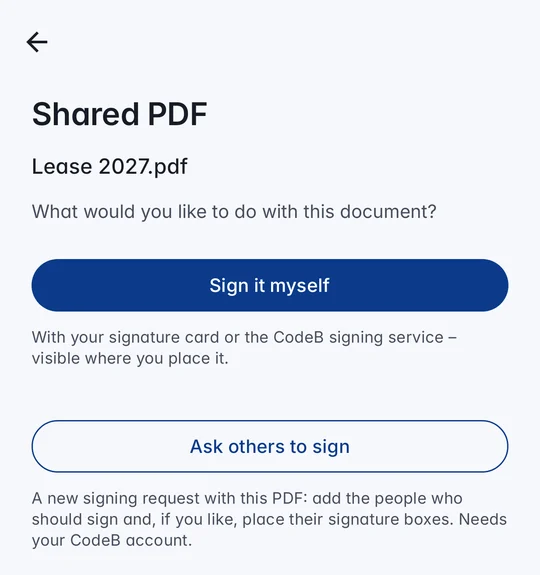
- Open the PDF: on the home screen choose Sign and pick the invoice – or share the PDF from another app (e-mail, files) to CodeB Wallet and tap Sign it myself.
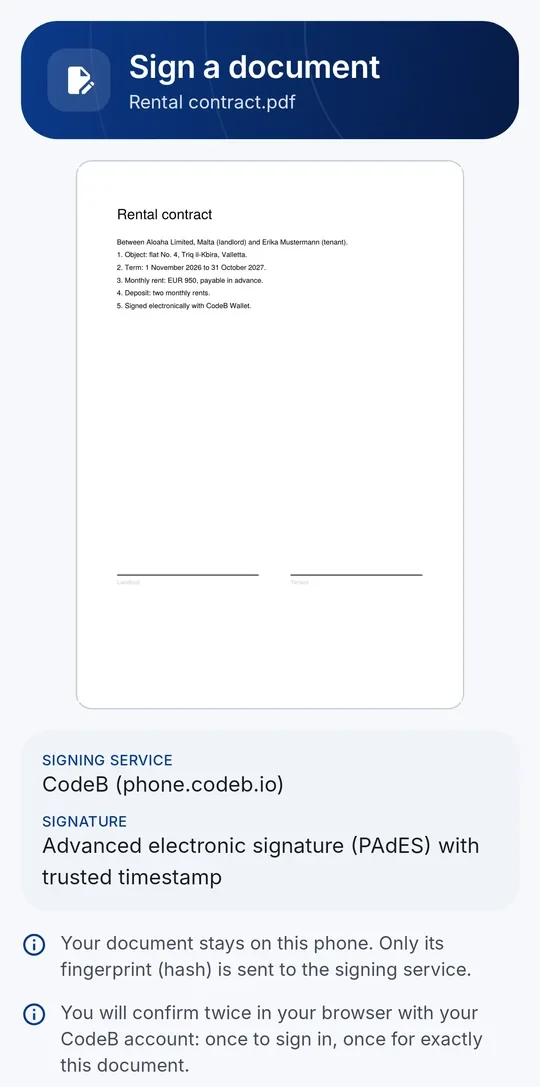
- Review and choose how to sign: swipe through the pages, then Sign with signature card or Sign document (CodeB signing service).
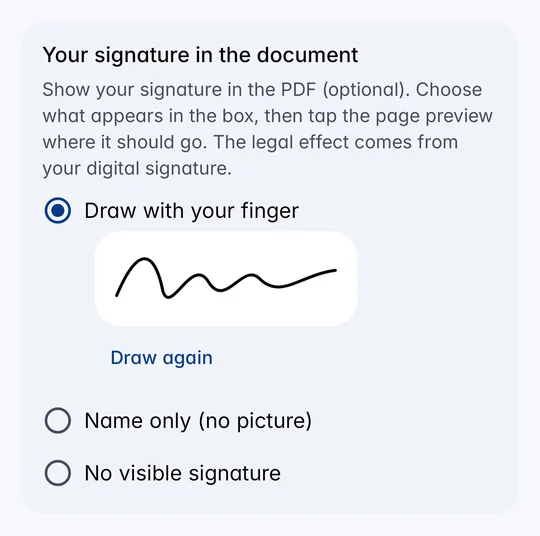
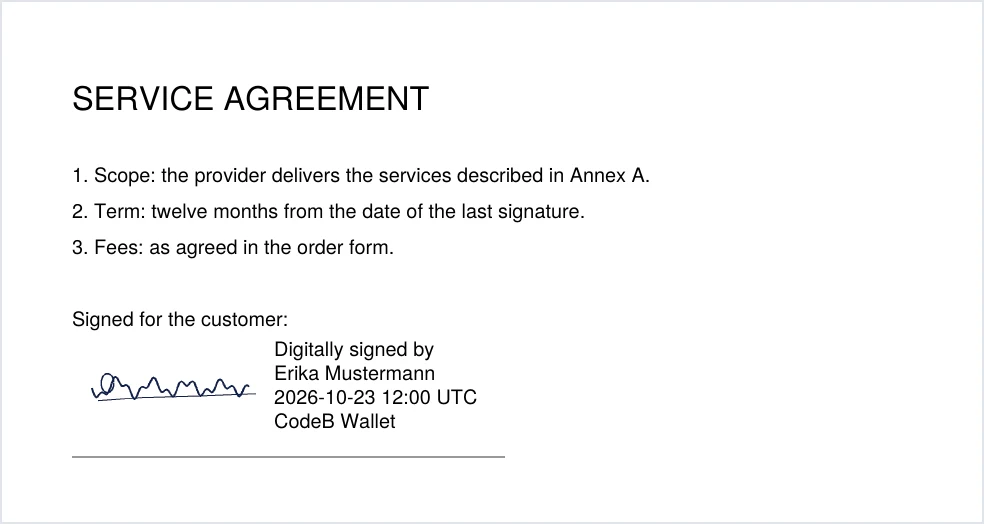
- Optional visible signature: draw with your finger, use the signature image from your passport, ID card or mobile driving licence, or only your name – then tap the spot in the page preview.
- Sign: with a card enter the card access number (CAN), hold the card to the back of the phone and enter the signature PIN. With the signing service the browser opens: sign in and confirm exactly this document.
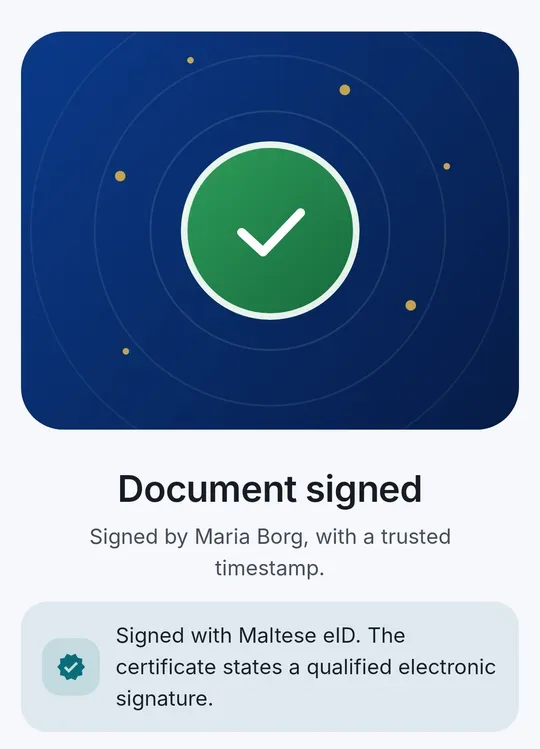
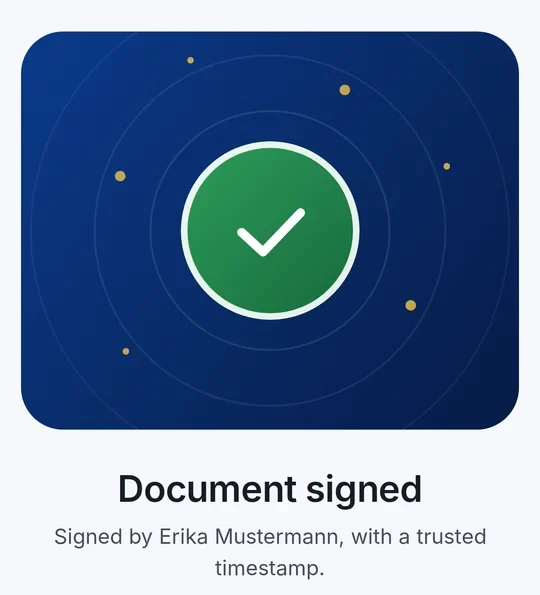
- Save or share: "Document signed" – save the invoice on the phone or share it directly.
Which cards give a qualified signature (QES)?
CodeB Wallet reads signature cards over NFC; the key never leaves the chip, the PIN only goes over an encrypted PACE channel and is never stored. Supported:
- Maltese eID and Maltese residence cards – see Maltese eID guide
- D-Trust Card 5 signature and seal cards – see D-Trust guide
- German health professional card (HBA) and electronic health card (eGK) – see health cards guide
The signature is qualified only when the card's certificate states a qualified electronic signature; the app shows this after signing. Card signing needs no account and no browser.
No card? Advanced signature with the CodeB signing service
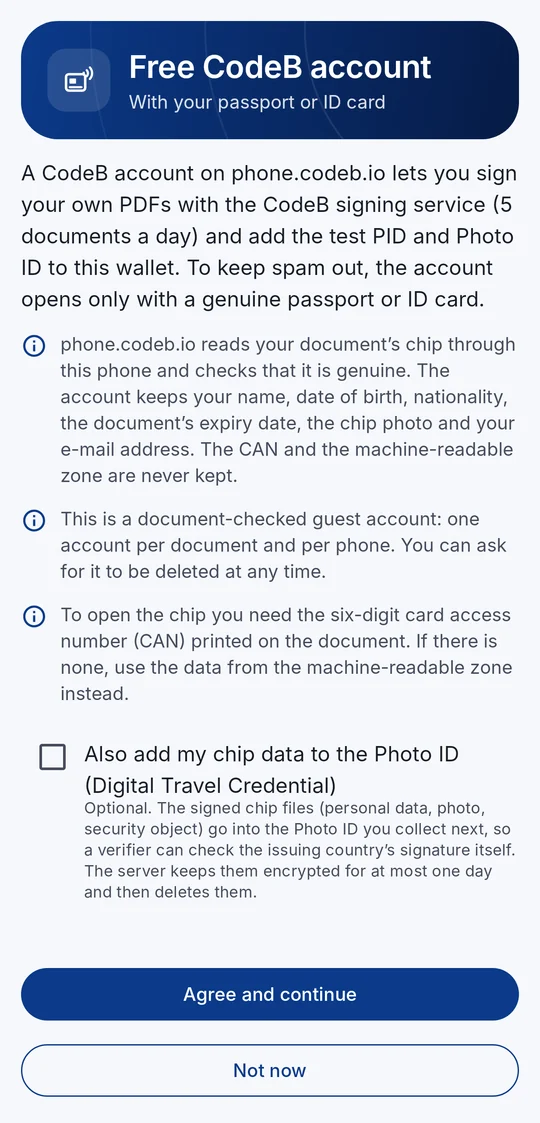
With a free CodeB account you sign without a card: an advanced electronic signature (AdES), PAdES with trusted timestamp. The key is on the server, you confirm every signature yourself (sign-in and confirmation of exactly this document); the PDF stays on the phone, only its hash goes to the service. The free guest account signs up to 5 own documents a day; documents others ask you to sign do not count.
You open the account in the app in about two minutes (menu → Settings → Create a free CodeB account): hold your ID card (CAN) or passport (machine-readable zone) to the phone, confirm your e-mail address, done – see free CodeB account. It is a guest account checked against the identity document, not an officially verified identity.
An advanced signature is enough for many everyday documents, but not where the law requires a qualified signature – then you need a signature card. Sending an e-invoice in Germany does not require a signature; it does prove the origin and integrity of the file.
Several signers: signing request
On phone.codeb.io/sign-request.html you upload one or more PDFs, choose the signature level, whether you sign first, and invite up to 5 people by e-mail (guest accounts: 2) – in the order you want, optionally with one signature field per person. You sign yourself by scanning the QR code with CodeB Wallet; invited people get an e-mail and sign in their CodeB Wallet – each with a card (QES when the certificate states it) or the signing service (AdES). At the end everyone gets the link to the signed PDF and a signature report. More: sign PDFs with CodeB Wallet.
In the ZUGFeRD GUI and the PDF Editor (version 11.0.0.8 and later)
In the Sign PDF tab of the Aloaha ZUGFeRD GUI and under Tools → Sign with CodeB Wallet… in the Aloaha PDF Editor the button Sign with CodeB Wallet… starts a signing request for the chosen invoice:
- Once: add one agent per installation (named after the PC or program) on phone.codeb.io/agent-approvals.html and enter the agent ID and secret together with your CodeB user name (the secret can be saved encrypted for your Windows user) – see agent ID and agent secret.
- Send signing request: the program shows a code; approve the sign-in on the approvals page with this code.
- The invoice is uploaded. Sign in CodeB Wallet (QR code on
phone.codeb.io/sign-request.html); invited people get an e-mail. - Once everybody has signed, the program saves the signed PDF under the chosen name.
Agent ID and agent secret – what are they?
The agent ID and agent secret are the program's own login (ZUGFeRD GUI, PDF Editor or your software using the SDK) at CodeB – not your personal login. Your CodeB password never goes into the program. The method is called OpenID CIBA: the program asks, you approve.
- Create the agent (once per PC or installation): open phone.codeb.io/agent-approvals.html, sign in with your CodeB account, choose Add agent under "Agents you added" and give it a name you will recognise, e.g. "ZUGFeRD GUI – office PC" (the name is shown with every request).
- Enter it: copy the agent ID (format
agent-…) and the secret that CodeB issues for this agent into the dialog, together with your CodeB user name. Treat the secret like a password; with "Save agent secret" the program stores it only encrypted for your Windows user. - Approve: on "Send signing request" the program shows a 4-digit code. On the same page you approve the sign-in if it shows the same code. The program may then work for one hour (upload the PDF, check the status, download the signed PDF); there is no refresh token – after that it asks again.
| Question | Answer |
|---|---|
| Can the agent sign by itself? | No. Every signature is made by a person in CodeB Wallet. The agent can create, follow, invite, withdraw and download requests – deleting stays with you. |
| How many agents? | One per installation; CodeB allows up to 10 agents per account. |
| How do I block an agent? | Remove it on the approvals page – the program can then do nothing within a minute. |
| Why the CodeB user name? | So CodeB knows whom to ask for approval. It is your normal CodeB user name (a free account is enough). |
| May the secret go into code? | No – in your own software load it from protected storage (DPAPI, Windows Credential Manager), never as a literal in source code, configuration files or PDFs. |
For developers: signing requests from your own software (SDK)
From SDK version 11.0.0.8 the new COM and .NET class Aloaha_ZUGFeRD.WalletSignRequest uses the signing requests API: sign-in of the program with OpenID CIBA (approved by the user), upload, status and download of the signed PDF. The existing COM interface of the class XML is unchanged.
' VB6 / VBA (late binding)
Dim w As Object
Set w = CreateObject("Aloaha_ZUGFeRD.WalletSignRequest")
w.LicenseKey = "YOUR-LICENCE-KEY"
w.UserName = "your-codeb-user"
w.AgentID = "agent-1234"                 ' from phone.codeb.io/agent-approvals.html
w.AgentSecret = ReadAgentSecret()        ' from protected storage (DPAPI / Credential Manager) – never as a literal in code
w.Level = "aes"                          ' or "qes" (signature card only)
w.SignMyself = True
Call w.AddInvite("accounts@example.com")        ' optional: second signature

If w.RequestApproval() Then
    MsgBox "Please approve on " & w.ApprovalURL & " with code " & w.BindingMessage
    If w.WaitForApproval(300) Then
        If w.CreateRequest("C:\Invoices\INV-2027-0001.pdf", "Invoice INV-2027-0001") Then
            ' w.WalletLink = eudi-rqes://... for a QR code (or open phone.codeb.io/sign-request.html)
            If w.WaitUntilSigned("C:\Invoices\INV-2027-0001_signed.pdf", 1800) Then
                MsgBox "Signed:" & vbCrLf & w.SignersInfo
            End If
        End If
    End If
End If
If w.LastError <> "" Then MsgBox w.LastError
// C# (.NET)
var w = new Aloaha_ZUGFeRD.WalletSignRequest();
w.LicenseKey = "YOUR-LICENCE-KEY";
w.UserName = "your-codeb-user";
w.AgentID = "agent-1234";
w.AgentSecret = LoadAgentSecret(); // e.g. stored with ProtectedData (DPAPI) – never as a literal in code
w.Level = "aes";
if (w.RequestApproval() && w.WaitForApproval(300)
&& w.CreateRequest(@"C:\Invoices\INV-2027-0001.pdf", "Invoice INV-2027-0001")
&& w.WaitUntilSigned(@"C:\Invoices\INV-2027-0001_signed.pdf", 1800))
Console.WriteLine(w.SignersInfo);
else
Console.WriteLine(w.LastError);| Member | Meaning |
|---|---|
ServerURL | CodeB service, default https://phone.codeb.io (https only) |
UserName, AgentID, AgentSecret | sign-in of the program (agent from the approvals page); alternatively your own access token in AccessToken |
Level | "aes" (card or signing service) or "qes" (only a signature card whose certificate states a qualified signature) |
SignMyself, AddInvite, Note | sign first yourself, invited people in order (up to 5, guest accounts 2), note for the signers |
AddSignatureField | visible signature field per signer (page from 1, rectangle in PDF points, at least 60 × 20); Appearance sets what may appear in it. Leave it out for ZUGFeRD invoices for now (see the PDF/A note above) |
RequestApproval, WaitForApproval | approval of the program (code BindingMessage, page ApprovalURL); the access token lasts one hour |
CreateRequest, RefreshStatus, WaitUntilSigned, DownloadSigned, Withdraw | create the request (PDF up to 40 MB), status (Status, WalletLink, SignersInfo), wait and save the signed PDF, withdraw |
LastError | reason of the last error, e.g. "HTTP 401 sign_in_required"; secret and token never appear in it |
With a valid maintenance contract the upgrade to version 11.0.0.8 is free – downloads, prices.
Typical mistakes
- Changed after signing: any later change (embedding again, stamps, compression) breaks the signature. Signing is always the last step.
- "qes" without a suitable card: the CodeB signing service always creates an advanced signature. If you ask for "qes", sign with a signature card whose certificate states a qualified signature.
- Not approved:
WaitForApprovalwaits at most 5 minutes. The code in the program and on the approvals page must match. - Guest account daily limit: 5 own documents a day; requests from others do not count.
CodeB Wallet is Aloaha's EUDI wallet for Android – more on the CodeB Wallet page and on myeudi.app. Access to the app is by invitation; CodeB Wallet itself is not certified. Guides: sign a PDF, signature fields.
Frequently asked questions
Can I sign a ZUGFeRD invoice with my phone?
Yes. A ZUGFeRD or Factur-X invoice is a PDF. Open it in CodeB Wallet or share it to the app, choose how to sign and sign: with a signature card over NFC or without a card with the CodeB signing service.
Does the ZUGFeRD XML stay valid after signing?
Yes. The signature is added as an incremental update; the previous content and the embedded XML stay unchanged. In our test the PDF/A-3 and XML checks gave the same result after signing as before. A visible signature must embed its fonts or be an image to keep PDF/A.
Is a CodeB Wallet signature qualified?
Only with a signature card whose certificate states a qualified electronic signature, for example a Maltese eID or a D-Trust signature card. With the CodeB signing service and no card the signature is an advanced electronic signature (AdES).
Can several people sign one invoice?
Yes, with a signing request on phone.codeb.io/sign-request.html or from the ZUGFeRD GUI, the PDF Editor or the SDK class WalletSignRequest: up to 5 invited people one after another, guest accounts 2.
How do I start signing from my own software?
With the SDK class Aloaha_ZUGFeRD.WalletSignRequest from version 11.0.0.8: RequestApproval and WaitForApproval for the approval, CreateRequest to upload, WaitUntilSigned to save the signed PDF. It works in .NET and over COM, for example from VB6, VBA or Access.
What does it cost?
The free CodeB guest account signs up to 5 own documents a day; card signing needs no account. The SDK function is part of the Aloaha ZUGFeRD SDK; with a valid maintenance contract the upgrade to 11.0.0.8 is free.
What are the agent ID and agent secret in CodeB Wallet?
The program's own login at CodeB, not your password. You create the agent once per PC on phone.codeb.io/agent-approvals.html and approve every sign-in there with the 4-digit code shown; the access then lasts one hour.
Can the program sign without me using the agent ID and secret?
No. The agent may only create, follow and download signing requests. Every signature is made by a person in CodeB Wallet; a removed agent can do nothing within a minute.